Printer Recovery Tool
Upgrades
Published: 18th October 2023
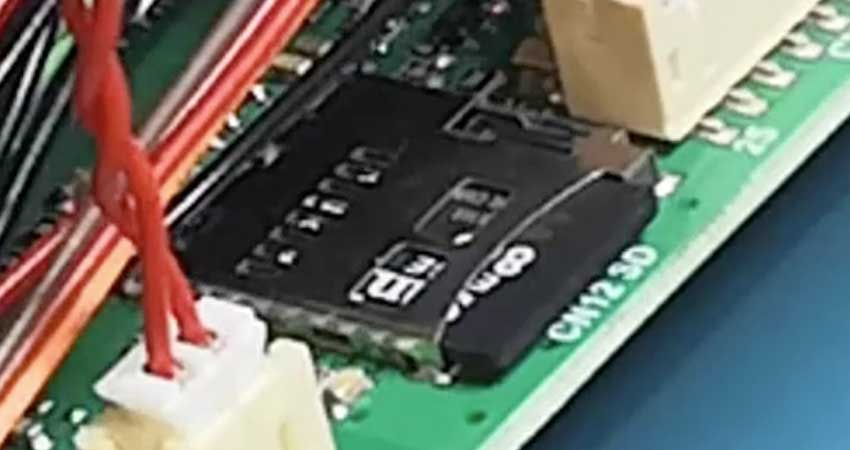
This Printer Recovery Tool has been created in advance of a planned removal of the SD Card currently fitted to MB1 printer PCB’s.
*The change has Not happeneded yet – at time of writing this.
A Technical Bulletin will be issued by Technical Support in advance of the change (eta ~Q2 2023).
ℹ️ Please note the importance of the Firmware Version / System Software Version in the information below.
PCB (MB1) REPLACEMENT
For printers with Firmware up to and including v13.49
The recovery process is:
- Remove faulty PCB from the printer.
- Remove SD Card from this original PCB.
- Fit SD Card into new PCB.
- Refit the new PCB with original SD Card into the printer.
- Run the “soak test routine”
The Printer is now ready to use ✅
This is the process you’re familiar with up to now.
For printers with Firmware v14.51 onwards
(exact date TBC):
The SD Card is now redundant even if it is still fitted.
The new recovery process will be:
- Remove the faulty PCB from the printer.
- Fit the new Controller PCB into the printer.
- Power on and when ready Soak Test printer for at least 11 cycles.
- Capture Query-File.zip (soak test count enables capture of the new query file)
- Upload Query File into this Partner Portal Tool. It will process the file and return your reset.prn file.
- Download recovery.prn and send to the printer in the usual manner (dealer tool).
The Printer is now ready to use ✅
Finally, this new Partner Portal Printer Recovery Tool will additionally display for you any Feature Keys this printer had enabled:
(Smart, Duo, HoloKote®) *if they were originally created via the ‘Online route’: partners.magicard.com / support.magicard.com
Download any of these additional files and send to the printer, after the original Factory reset has completed.