
Installing Duo or Smart .upg files
Upgrades
Published: 14th May 2025
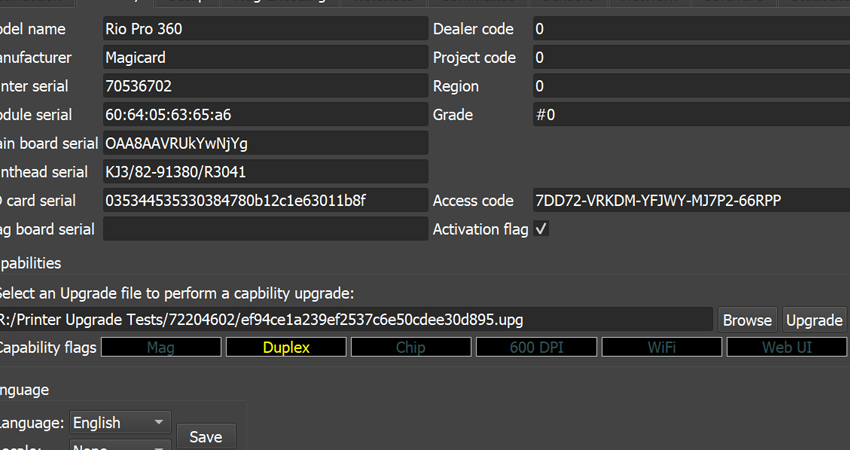
Please follow the steps below to install smart and duo upgrades to a Magicard printer.
This process is only for .upg files.
Files created and download from the Magicard Partner Portal will be .upg
The latest Dealer Tool is available to download using this link:
- Connect the Magicard printer to your Windows PC via usb, or
Connect your printer to the same network as your computer. - Launch the Magicard Printer Dealer Tool.
- On the Connection Tab:
- Select either USB or ethernet to select your printer.
- Then click Connect to connect to your chosen printer.
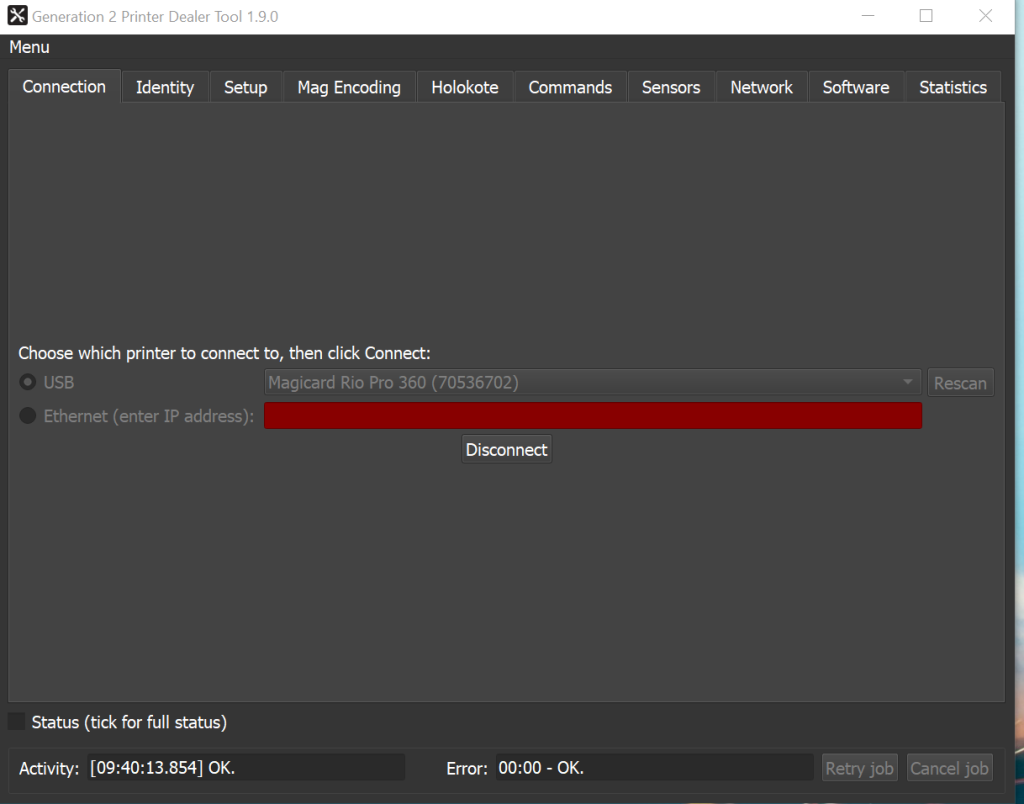
- Once connected select the “Identity” tab.
- Here you can install the .upg upgrade using the “Capabilities” section.
- Click browse to locate the folder you have saved your Magicard Partner Portal download into.Note the system will only allow files with the .upg extension
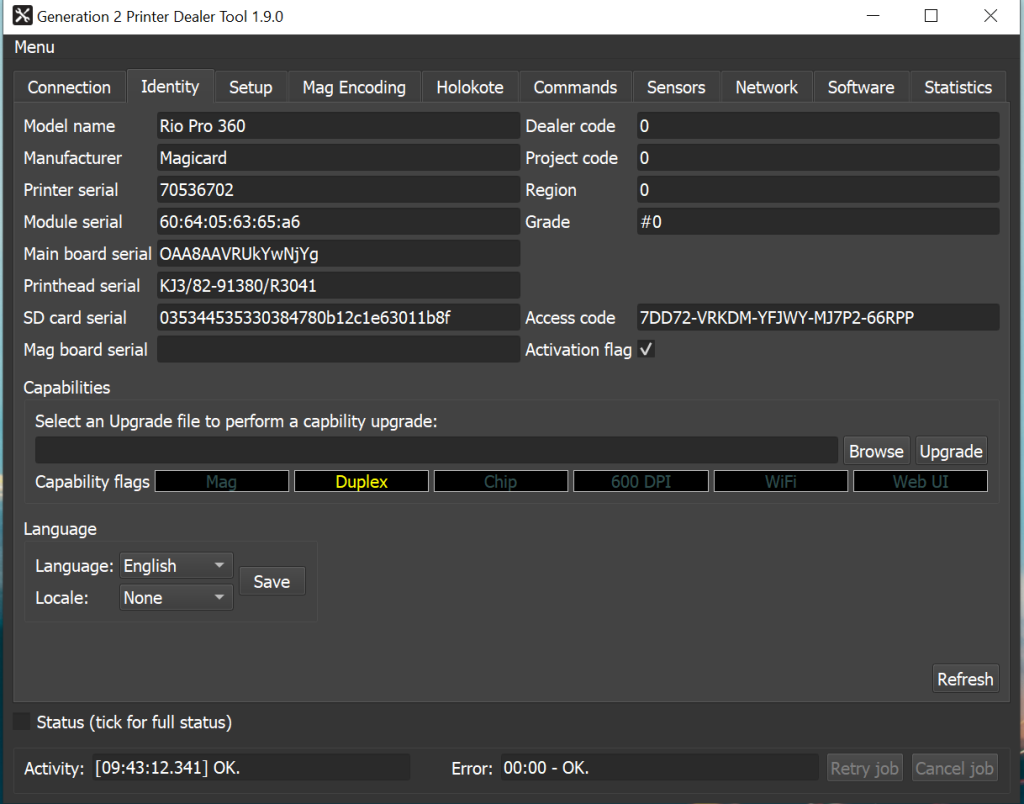
- Click browse to locate the folder you have saved your Magicard Partner Portal download into.Note the system will only allow files with the .upg extension
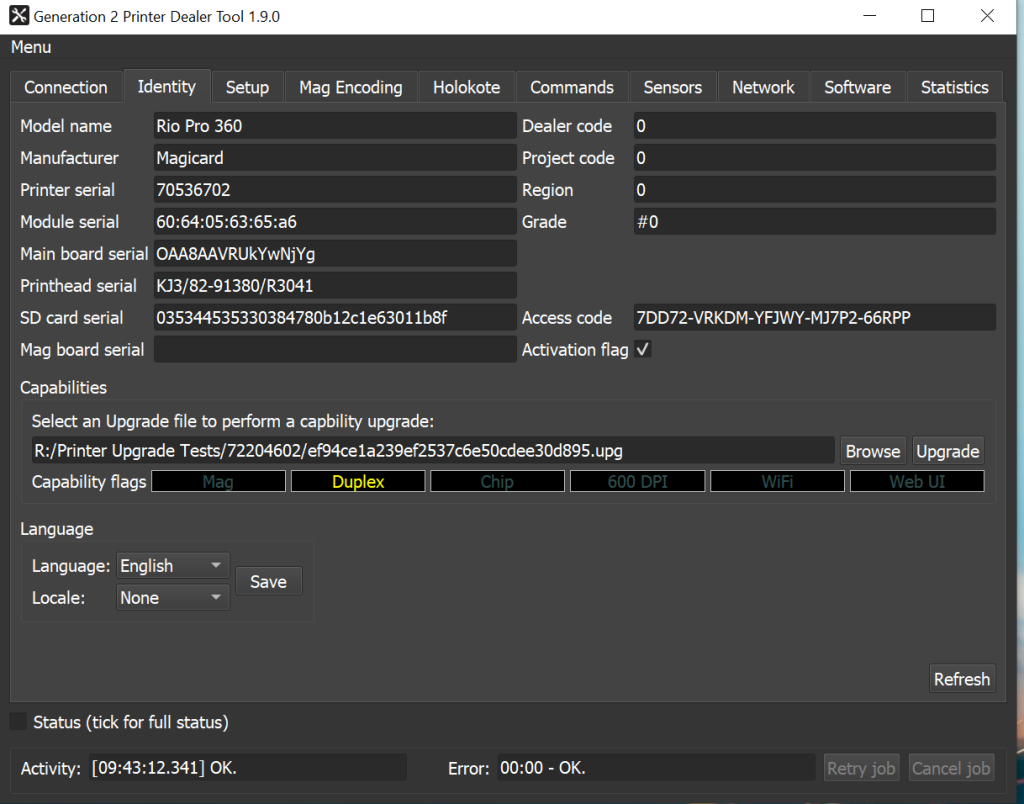
- Once you have selected your download click ‘Upgrade‘ to install the file to your printer.
- On successful install you will see the capability highlighted in yellow in the ‘Capability flags’ section:
- On successful install you will see the capability highlighted in yellow in the ‘Capability flags’ section: